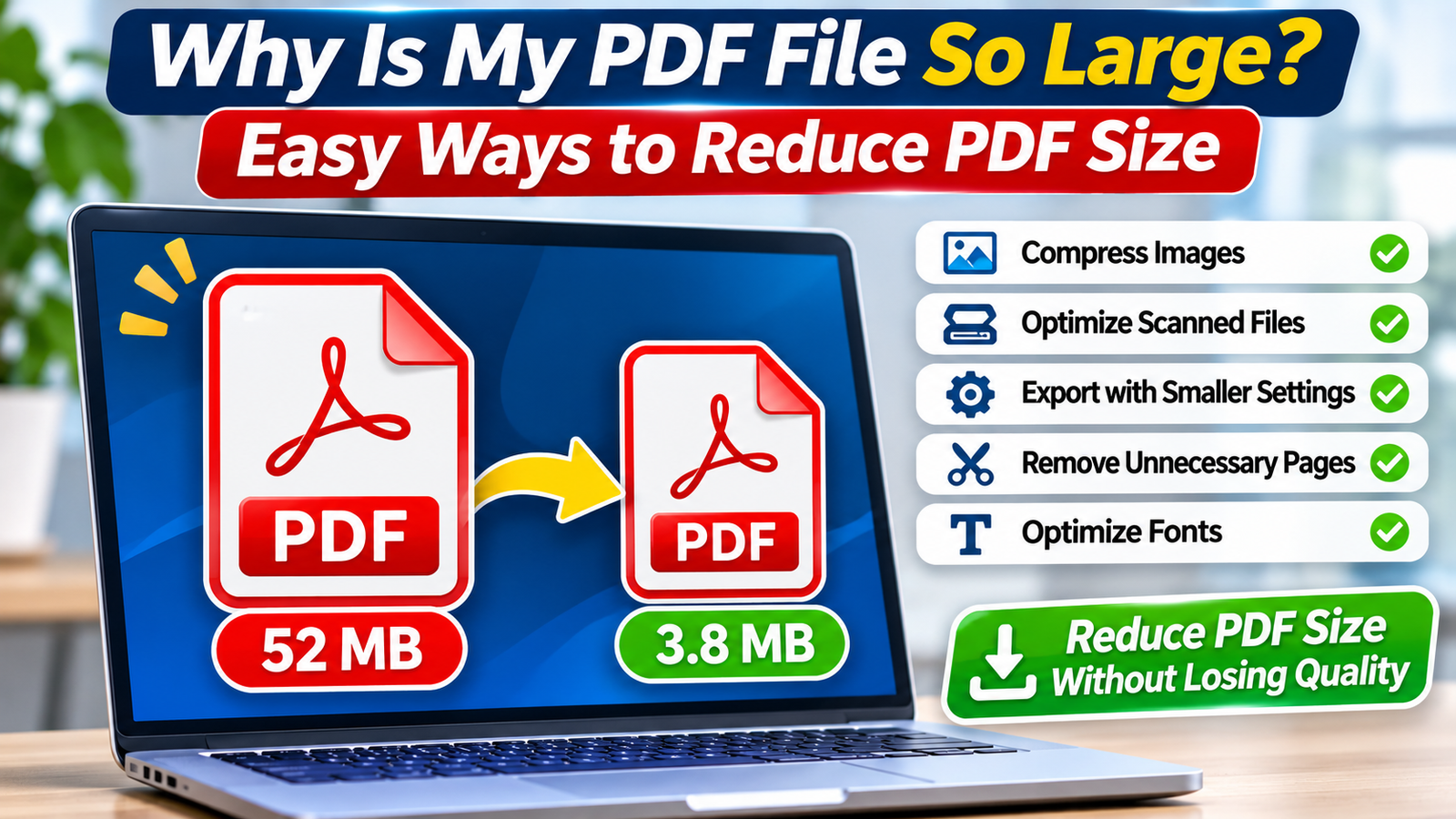
A five-page PDF shouldn’t always take up 50 MB of storage, yet surprisingly large documents are common. You might export a simple report, scan a few pages, or combine several files and discover that the resulting PDF is too large to email or upload.
The reason usually isn’t the number of pages. Images, embedded fonts, scanned content, and export settings can dramatically increase PDF file size, even when the document looks relatively simple.
The good news is that you can often reduce PDF size without making text difficult to read or removing important information. The right solution depends on what is actually making your document large.
Why Is My PDF File So Large?
PDF stands for Portable Document Format. It preserves the appearance of documents across different devices and operating systems.
Unlike a basic text file, a PDF can contain images, fonts, graphics, forms, and other embedded resources. These elements affect the final file size.
Here are the most common reasons PDFs become unexpectedly large.
1. High-Resolution Images
Images are among the biggest contributors to PDF size.
For example, a report containing ten high-resolution photographs can occupy significantly more storage than a 50-page document containing only text.
Images exported at unnecessarily high resolutions can increase file size without noticeably improving ordinary screen viewing.
2. Scanned Documents
When you scan a paper document, the scanner may save each page as an image.
A 20-page scanned PDF can therefore contain 20 full-page images rather than searchable text.
Color scanning at high resolution creates particularly large files.
3. Embedded Fonts
PDF documents can include font data to ensure that text displays consistently on different computers.
This is useful for preserving formatting, but embedding multiple complete font files can increase storage requirements.
Some PDF creation tools support font subsetting, which includes only the characters used in the document.
4. Unnecessary Graphics and Hidden Content
Complex illustrations, transparent elements, attachments, and unused document objects can contribute to a larger PDF.
Repeated editing or combining documents may also leave resources that an optimization tool can potentially remove.
However, not every large PDF contains unnecessary data. Some files genuinely need additional storage to preserve their content.
How to Check Your PDF File Size
Before compressing anything, check how large the document actually is.
On Windows:
-
Locate the PDF in File Explorer.
-
Right-click the document.
-
Select Properties.
-
Check the file size under the General tab.
On Mac:
-
Find the PDF in Finder.
-
Select the document.
-
Press
Command + I. -
Review the size information.
If your file exceeds an email attachment or website upload limit, identify the target size before choosing a compression method.
For example, reducing a 12 MB document to 8 MB may require only modest optimization, while reducing it below 1 MB could require noticeable image-quality compromises.
8 Easy Ways to Reduce PDF File Size
Different compression methods work better for different documents. Start with the least destructive option and keep the original file.
Method 1: Compress PDF Using Adobe Acrobat
Adobe Acrobat Pro provides PDF optimization features that can reduce file size by adjusting images and other document resources.
To get started:
-
Open your PDF in Adobe Acrobat Pro.
-
Find the PDF compression or optimization tool.
-
Select the document you want to optimize.
-
Choose the available compression settings.
-
Save the result with a different filename.
-
Compare its size and appearance with the original.
The exact menu names depend on your Acrobat version.
Advanced optimization options may allow greater control over image compression, fonts, and document objects.
Avoid aggressive compression when working with detailed diagrams, technical drawings, or documents intended for professional printing.
Method 2: Reduce PDF Size on Mac Using Preview
Mac users can try the built-in Preview application without installing additional software.
Follow these steps:
-
Open the PDF in Preview.
-
Select File > Export.
-
Find the Quartz Filter dropdown.
-
Choose Reduce File Size, if available.
-
Enter a new filename.
-
Save the compressed document.
Preview’s built-in reduction filter can substantially lower image quality in some documents.
Always inspect the exported PDF before replacing your original.
For text-heavy documents, the results may be acceptable. Image-heavy files may require a tool offering more precise compression controls.
Method 3: Compress Images Before Creating the PDF
If you still have the original Word document, presentation, or design file, optimizing its images before exporting can produce better results.
Consider these adjustments:
-
Resize photographs to match their intended display dimensions.
-
Use JPEG compression for ordinary photographs.
-
Use PNG when lossless graphics or transparency is necessary.
-
Avoid inserting extremely large images into small document areas.
-
Remove duplicate or unnecessary images.
For ordinary on-screen documents, extremely high image resolutions are often unnecessary.
However, professional printing and detailed technical graphics may require higher-quality images.
Export the document again after making changes, then compare both versions.
Method 4: Export PDFs With Smaller File Settings
Some applications offer different PDF export presets.
For example, Microsoft Word includes an option intended to produce smaller PDF files.
In supported desktop versions:
-
Open your document in Microsoft Word.
-
Choose File > Save As or Export, depending on your version.
-
Select PDF as the output format.
-
Look for the Minimum size (publishing online) optimization option.
-
Save the PDF.
This setting can be useful for documents primarily intended for electronic distribution.
Choose a higher-quality export option when print quality is important.
Method 5: Optimize Scanned PDF Documents
Scanned documents often offer significant opportunities for file-size reduction.
Before scanning, adjust the scanner settings according to your needs.
| Setting | Smaller-file approach |
|---|---|
| Resolution | Try 150–200 DPI for ordinary readable text |
| Color mode | Use grayscale for documents without essential colors |
| Image compression | Choose suitable JPEG or document compression |
| Page area | Crop unnecessary borders |
| Output | Use searchable PDF when supported |
For small print or detailed documents, 300 DPI may be more appropriate.
Optical character recognition (OCR) can make scanned text searchable, but OCR alone does not guarantee a smaller file. The underlying page images may still occupy substantial storage.
Method 6: Use a Trusted Online PDF Compressor
Online PDF compression services provide a convenient alternative when you don’t have desktop PDF software.
The typical process is straightforward:
-
Open a reputable PDF compression service.
-
Upload your document.
-
Select the available compression level.
-
Process the file.
-
Download the optimized PDF.
-
Check the document carefully.
Important privacy warning: Avoid uploading confidential contracts, identification documents, medical information, or financial records to unfamiliar services.
Check the provider’s privacy and file-retention policies before uploading sensitive information.
For confidential documents, offline compression software is generally the safer choice.
Method 7: Remove Unnecessary Pages and Attachments
Sometimes the easiest way to reduce PDF size is to remove content you no longer need.
A document may include blank pages, duplicate scans, outdated appendices, or embedded attachments.
Use a trusted PDF editor to remove unnecessary material, then save a new copy.
Be careful with digitally signed documents. Editing or reorganizing their contents can invalidate signatures.
Also, deleting visible content is not the same as securely redacting sensitive information. Use proper redaction tools when confidentiality matters.
Method 8: Optimize Fonts and Document Resources
Advanced PDF optimization software can sometimes reduce file size by removing redundant resources or adjusting embedded font data.
Font subsetting is particularly useful when a document uses only a small portion of a large font family.
Other optimization options may include removing unused objects or compressing compatible document streams.
These changes are best performed with a reputable PDF optimization tool.
Do not remove required fonts or accessibility information simply to achieve a smaller file.
How to Reduce PDF Size Without Losing Quality
The best approach is to optimize unnecessary data before reducing visible quality.
For text-based PDFs, consider font subsetting and document-resource optimization.
For image-heavy PDFs, use moderate image compression and sensible resolutions.
For scanned PDFs, adjust scanning settings before creating the file whenever possible.
Technically, some compression methods are lossless, meaning they preserve the original information. Others are lossy and discard image data to achieve smaller files.
A PDF containing already-compressed images may offer limited opportunities for further reduction without quality loss.
Always inspect the final document at normal viewing size and at higher zoom levels.
Common PDF Compression Mistakes to Avoid
Several mistakes can make a smaller PDF less useful.
-
Compressing repeatedly: Multiple lossy compression passes can progressively reduce image quality.
-
Using the lowest resolution: Fine text, signatures, and diagrams may become difficult to read.
-
Overwriting the original: You may lose access to the higher-quality version.
-
Ignoring interactive features: Some optimization processes can affect forms, annotations, or attachments.
-
Assuming every file will shrink: Already optimized PDFs may become only slightly smaller or occasionally larger after processing.
Keep an original backup until you have verified the compressed version.
How to Verify Your Compressed PDF
After compression, compare the new file with the original.
Check that every page opens, text remains readable, images appear correctly, and important links or form fields still function.
For scanned documents, zoom in on small text to ensure characters remain distinguishable.
Finally, compare the file sizes using your operating system’s file information.
If the compressed document meets your upload limit and preserves the information you need, further compression is unnecessary.
Frequently Asked Questions
Why is my PDF so large even though it has only one page?
A single-page PDF may contain a high-resolution photograph, detailed graphics, embedded fonts, or a full-page scan. Page count alone doesn’t determine file size. Inspect the document’s content and try optimizing images or export settings before applying aggressive compression.
Can I reduce a PDF from 20 MB to 2 MB?
Possibly, but the result depends on the document. A scanned PDF with oversized images may shrink significantly. A PDF containing already-compressed images or essential high-resolution graphics may not reach 2 MB without noticeable quality loss.
Does compressing a PDF reduce text quality?
Not necessarily. Text stored as fonts and vector information can often remain sharp after optimization. However, text contained inside scanned page images may become blurry when those images are compressed too heavily or reduced to a low resolution.
Is it safe to compress PDFs online?
It depends on the service and document sensitivity. Reputable services may provide privacy protections, but uploading files transfers their contents to another provider. For confidential or regulated information, prefer approved offline software or an organization-authorized document-processing service.
Conclusion
Large PDF files usually result from high-resolution images, scanned pages, embedded fonts, or inefficient export settings.
The most effective way to reduce PDF size is to identify which elements occupy the most storage and optimize them appropriately.
Start with better export settings or moderate compression, preserve the original document, and verify the result before sharing it.
A smaller PDF is useful only when it remains readable, complete, and suitable for its intended purpose.