A ZIP file can look perfectly normal until you try to open it. Instead of seeing your documents, photographs, or downloaded files, you receive an error saying the archive is invalid, corrupted, or cannot be extracted.
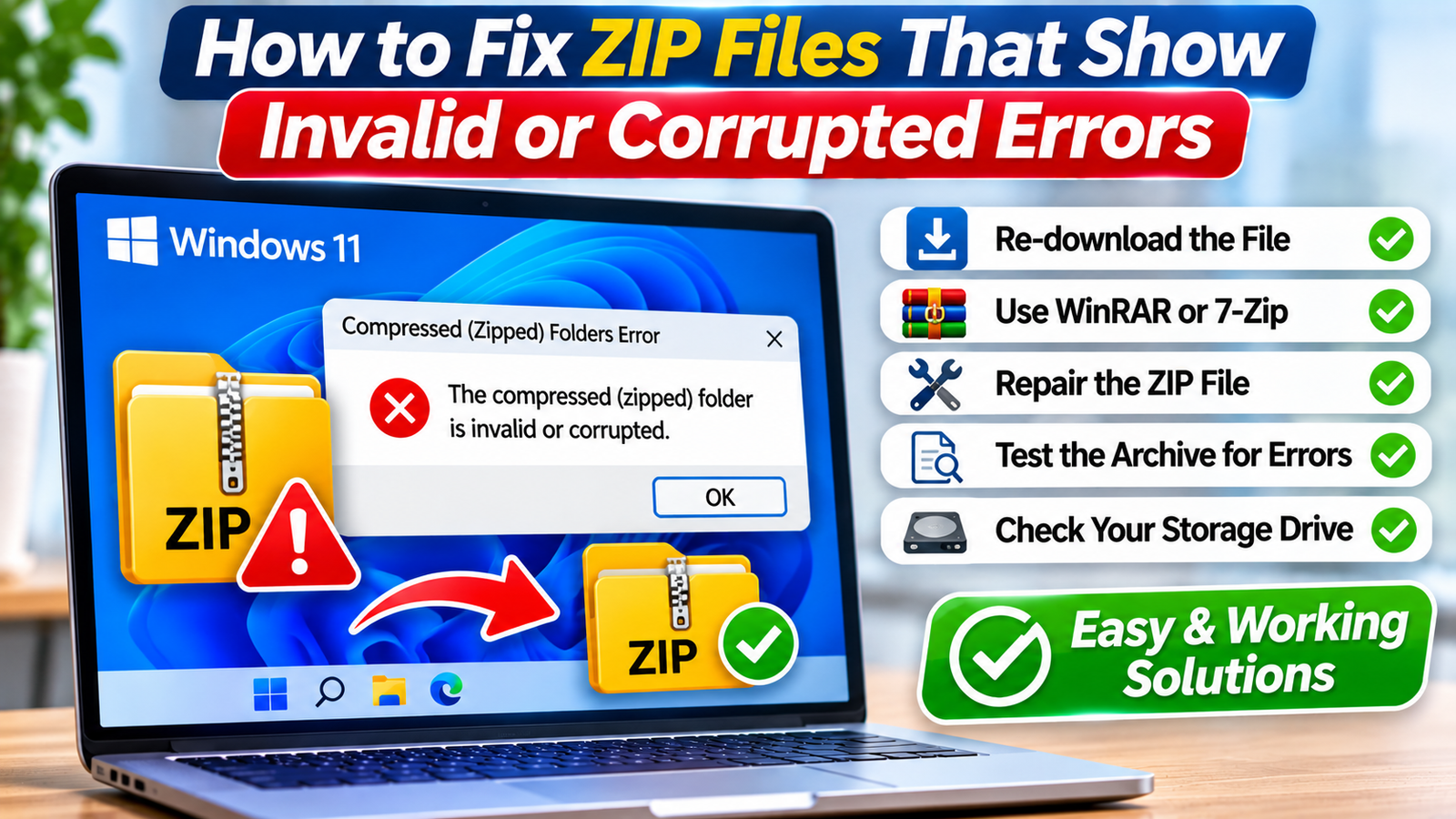
On Windows, you might encounter messages such as “The compressed (zipped) folder is invalid.” Other extraction programs may report unexpected archive endings, checksum failures, or damaged data.
These errors don’t always mean your files are permanently lost. An interrupted download, unsupported compression method, incomplete archive, or storage problem may be responsible.
The safest approach is to identify the cause before attempting repairs. This guide explains practical ways to fix corrupted ZIP files, recover accessible content, and avoid making the damage worse.
What Does “ZIP File Is Invalid or Corrupted” Mean?
A ZIP file is an archive that stores one or more files together, often using compression to reduce storage requirements.
It contains structural information that tells extraction software where files are located and how to decompress them.
When important parts of this structure are missing or damaged, an archive utility may be unable to read the contents.
Common error messages include:
-
“The compressed (zipped) folder is invalid.”
-
“Cannot open file as archive.”
-
“Unexpected end of archive.”
-
“CRC failed.”
-
“The archive is either in unknown format or damaged.”
These messages can indicate different problems.
For example, an unexpected end-of-archive error often suggests missing data, while a CRC failure indicates that extracted content failed an integrity check.
Understanding the specific error helps you choose the appropriate solution.
Why Do ZIP Files Become Corrupted?
ZIP archives can fail for several reasons.
Incomplete downloads: A connection interruption may leave part of the archive missing.
Interrupted transfers: Removing a USB drive during copying can produce an incomplete file.
Storage problems: Disk errors or unreliable storage devices may damage archive data.
Unsupported compression: Some extraction utilities cannot handle every compression method or encryption format.
Incorrect file extensions: A file named .zip may actually contain another format or an error page downloaded from a website.
Damaged archive structure: Missing directory information can prevent extraction even when some compressed data remains intact.
Before trying repair software, determine whether you can obtain another copy of the original archive.
Fix 1: Download the ZIP File Again
If the archive came from the internet, downloading it again is usually the best first step.
-
Delete or rename the incomplete download.
-
Return to the original trusted website.
-
Confirm that your internet connection is stable.
-
Download the ZIP file again.
-
Wait until the download finishes completely.
-
Try opening the new archive.
Compare the file size with the size published by the source, if available.
A significantly smaller download may indicate missing content.
If the website provides a SHA-256 checksum, you can also verify the download’s integrity.
On Windows, open PowerShell and run:
Get-FileHash "C:\Users\YourName\Downloads\archive.zip" -Algorithm SHA256Compare the resulting hash with the checksum supplied by the original publisher.
A matching hash provides strong evidence that the downloaded file matches the published version.
Fix 2: Try a Different ZIP Extraction Program
Windows File Explorer supports common ZIP archives, but compatibility varies with compression and encryption methods.
A file that fails in one application may open successfully in another.
Consider reputable archive utilities such as 7-Zip or WinRAR.
For example, using 7-Zip:
-
Install the software from its official source.
-
Right-click the ZIP file.
-
Open the 7-Zip menu.
-
Select Open archive.
-
Check whether the file list appears.
-
Try extracting the contents to a separate folder.
If the archive opens successfully, the problem may involve the original extraction utility rather than damaged data.
However, different software cannot guarantee recovery from genuine corruption.
Fix 3: Test the ZIP Archive for Errors
Before attempting repairs, check whether your archive utility can identify damaged files.
7-Zip includes an archive-testing feature.
To use it:
-
Open 7-Zip File Manager.
-
Navigate to the ZIP archive.
-
Select the archive.
-
Click Test.
-
Review the reported results.
The tool checks whether archive contents can be processed correctly.
If testing succeeds, try extracting the files to a different destination.
If testing reports CRC errors or missing data, the archive may be genuinely damaged.
Testing does not repair the file, but it helps distinguish extraction problems from archive integrity failures.
Fix 4: Repair the ZIP File Using WinRAR
WinRAR includes an archive repair feature that may help with certain damaged ZIP files.
The results depend on which archive structures remain intact.
Follow these steps:
-
Open WinRAR.
-
Navigate to the damaged ZIP archive.
-
Select the archive.
-
Choose Tools > Repair archive.
-
Select the appropriate archive type when prompted.
-
Choose a destination for the repaired output.
-
Start the repair process.
WinRAR may create a new archive containing recoverable data.
Test the repaired archive before relying on it.
Important: Repairing an archive does not recreate missing compressed data. Severely damaged files may remain unreadable even if the archive structure is partially restored.
Always preserve the original ZIP file before attempting repair.
Fix 5: Extract Recoverable Files Separately
Sometimes only one file inside a ZIP archive is corrupted.
Other files may still be accessible.
Instead of extracting everything at once, try recovering individual entries.
-
Open the archive using 7-Zip or another compatible utility.
-
Check whether the archive’s file list appears.
-
Select a small file that you want to recover.
-
Extract it to a new folder.
-
Open the extracted file to verify its contents.
-
Repeat for other important files.
If the extraction utility reports errors, do not assume that every recovered file is complete.
Some applications can produce partial output from damaged archives.
Check documents, photographs, and other recovered content carefully before using them.
Fix 6: Check Whether the ZIP File Is Password-Protected
A password-protected ZIP file may produce errors when opened with incompatible software or an incorrect password.
Some archive formats use encryption methods that older extraction programs do not support.
If you received the file from another person:
-
Confirm whether the archive requires a password.
-
Request the correct password through a trusted communication channel.
-
Open the archive using compatible software.
-
Enter the password when prompted.
-
Extract the files to a secure location.
An incorrect password can sometimes result in checksum or extraction errors.
However, password errors and genuine corruption are different problems.
Avoid unknown password-recovery programs, particularly when handling confidential documents.
Fix 7: Move the ZIP File to Another Folder
Extraction may fail because of destination permissions, path-length limitations, or insufficient storage space.
These issues can resemble archive corruption.
Try this simple test:
-
Copy the ZIP file to a local folder such as
C:\Temp. -
Confirm that your drive has enough free space.
-
Open the archive with a trusted extraction utility.
-
Extract the contents into a short destination path.
-
Check whether extraction completes.
This approach is particularly useful when working with deeply nested folders or files stored on external drives.
If the archive works from a local folder, investigate the original storage location or destination permissions.
Fix 8: Check External Drives and Storage Problems
If several archives become corrupted after being copied to the same USB drive or external disk, the storage device may be responsible.
First, copy important readable files to another reliable drive.
Then check the drive’s health using your operating system’s diagnostic tools.
On Windows, you can inspect a drive through Properties > Tools > Error checking.
Avoid repeatedly writing new data to a drive that may be failing.
If you suspect physical storage damage, prioritize backing up accessible information before running repairs.
For valuable or irreplaceable files, professional data recovery may be safer than experimenting with multiple repair utilities.
Fix 9: Request a Fresh Archive From the Sender
When a ZIP file cannot be repaired, obtaining a fresh copy is often more reliable than attempting additional recovery.
Ask the sender to:
-
Open the original files.
-
Create a new ZIP archive.
-
Test the archive before sharing it.
-
Upload or transfer it completely.
-
Provide a checksum if integrity verification is important.
If the archive was created from damaged source files, rebuilding it will not fix those files.
The sender should verify the original content before creating the replacement.
How to Prevent ZIP File Corruption
A few practical habits can reduce future archive problems.
-
Wait for downloads and file transfers to finish completely.
-
Safely eject external storage devices.
-
Maintain backups of important original files.
-
Use trusted, updated compression software.
-
Test large archives before deleting their source files.
-
Verify checksums when provided by the publisher.
Also, remember that ZIP files are not automatically safe simply because they open successfully.
Avoid extracting or running executable files from unknown sources.
Frequently Asked Questions
Can a corrupted ZIP file be repaired completely?
Sometimes. Repair tools may reconstruct damaged archive structures or recover unaffected files. However, missing compressed data cannot always be restored. Recovery success depends on the location and severity of the damage, the compression method, and whether another intact copy exists.
Why does Windows say my compressed ZIP folder is invalid?
Windows may display this error when an archive is incomplete, structurally damaged, incorrectly named, or uses unsupported compression features. Try downloading the file again and opening it with a compatible archive utility before assuming the contents are permanently corrupted.
Can 7-Zip repair corrupted ZIP files?
7-Zip can test archives and may extract files that remain accessible despite certain errors. However, it does not provide a general-purpose ZIP repair function equivalent to WinRAR’s repair feature. Its main value is diagnosing problems and recovering readable content.
Is it safe to use online ZIP repair websites?
Uploading an archive to an online service exposes its contents to that provider. Avoid uploading private documents, financial records, credentials, or confidential business files. Offline tools from reputable developers are generally preferable when handling sensitive information.
Conclusion
Invalid or corrupted ZIP errors can result from incomplete downloads, damaged archive structures, incompatible extraction software, or storage problems.
Start by downloading the file again, testing it with a compatible archive utility, and checking whether individual files remain recoverable.
If necessary, try a reputable repair tool while preserving the original archive.
Not every damaged ZIP file can be fully restored, but identifying the actual cause gives you the best chance of recovering important data safely.