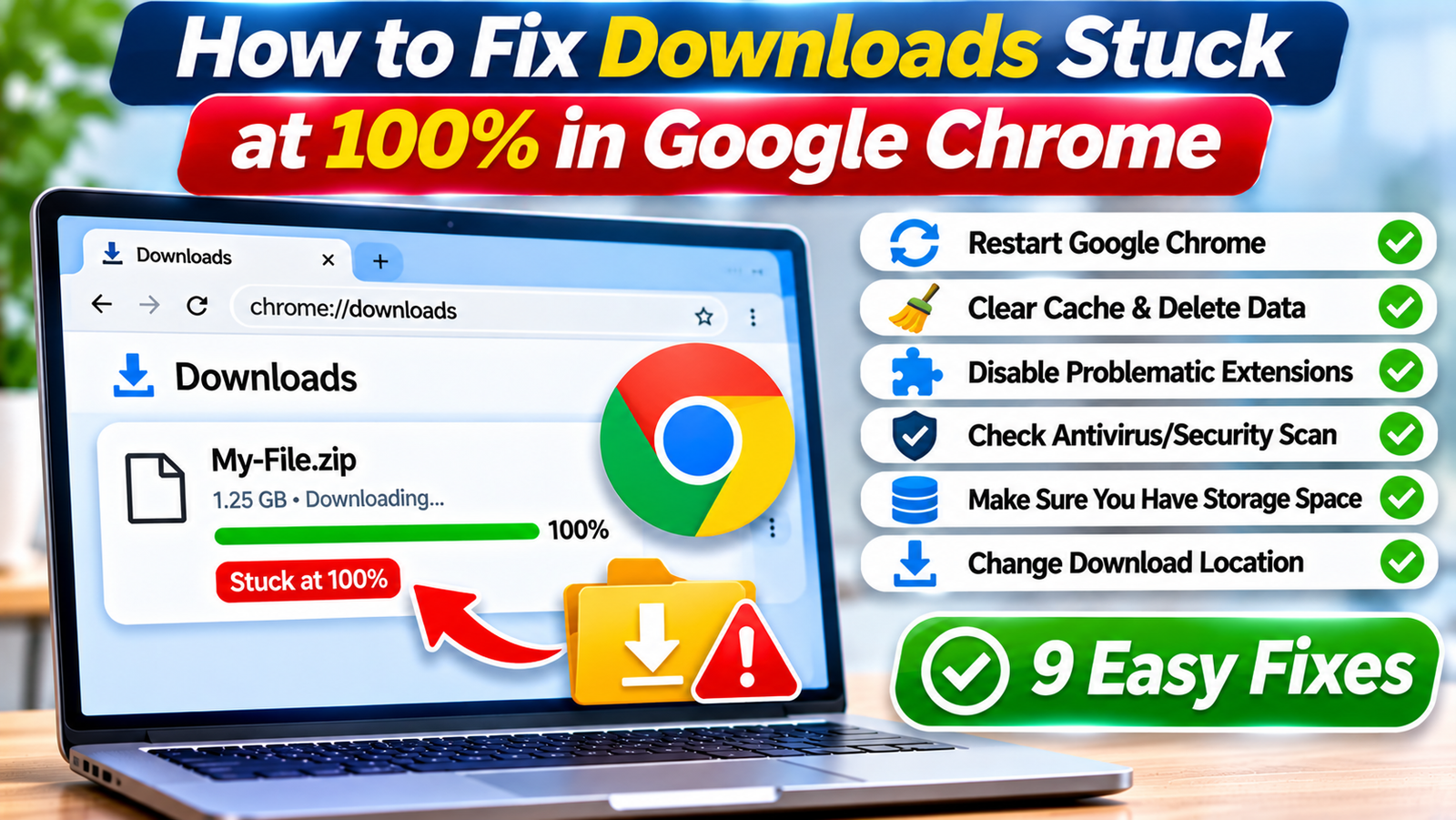
A Google Chrome download reaches 100%, but instead of finishing, it stays stuck. The progress indicator stops moving, the file won’t open, and Chrome may continue displaying a downloading or processing status.
This situation is frustrating because it appears that the entire file has already arrived on your computer.
However, reaching 100% doesn’t always mean the download is completely finalized. Chrome may still be completing file operations, checking security information, or waiting for the operating system to release the file.
The problem can also involve insufficient storage space, browser extensions, antivirus software, or an interrupted connection.
This guide explains how to fix Chrome downloads stuck at 100% while avoiding unnecessary data loss, unsafe security changes, and repeated downloads.
Why Does Google Chrome Get Stuck at 100%?
Chrome’s download percentage generally reflects the transfer of data, but additional processing may be required before the file becomes available.
For example, Chrome commonly uses a temporary .crdownload file while downloading.
Once the download finishes successfully, Chrome normally finalizes the file under its intended filename.
Several problems can interrupt this process:
-
Security scanning delays: Chrome or security software may still be evaluating the file.
-
Antivirus interference: A security application may temporarily hold or quarantine the download.
-
Storage problems: The destination drive may lack sufficient space or have file-system issues.
-
Browser extensions: Download managers or other extensions may interfere with normal behavior.
-
Connection interruptions: The final stage of the transfer may not have completed correctly.
-
File permission problems: Chrome may be unable to finalize or rename the temporary file.
-
Browser issues: An outdated browser or corrupted configuration may contribute to the problem.
The correct solution depends on whether the download is still processing, has failed, or has already been saved.
First: Check Whether the File Has Actually Downloaded
Before restarting Chrome, inspect the download status.
-
Open Google Chrome.
-
Press Ctrl + J on Windows or Command + Shift + J on Mac to open the Downloads page.
-
Locate the affected download.
-
Read its current status.
-
Check whether Chrome offers an option to show the file in its folder.
If the download is marked complete, open the destination folder and verify that the file exists.
If Chrome still shows it as downloading, avoid immediately deleting the temporary file.
Large downloads may require additional time for disk operations or security checks.
Wait briefly, particularly when downloading large archives or software installers.
Fix 1: Give Chrome Time to Finalize the Download
A download stuck at 100% for a few seconds isn’t necessarily broken.
Chrome may still be writing data, renaming the temporary file, or waiting for a security application to finish checking it.
Try this approach:
-
Keep Chrome open.
-
Wait a few minutes.
-
Check the Downloads page again.
-
Open the destination folder.
-
See whether the final filename has appeared.
If the file becomes available and opens correctly, no further action is required.
If the download remains stuck for an unusually long time without any progress, continue with the following troubleshooting methods.
Avoid repeatedly clicking the download button because this may create duplicate downloads.
Fix 2: Check Available Storage Space
A nearly full storage drive can interfere with downloading and finalizing files.
Even if Chrome displays 100%, the operating system may still need space for file operations.
On Windows
-
Open Settings.
-
Select System > Storage.
-
Check the available space on the destination drive.
-
Remove unnecessary files if storage is critically low.
-
Retry the download.
On Mac
-
Open System Settings.
-
Select General > Storage.
-
Review the available storage.
-
Free space if necessary.
Remember that large archives may require additional storage when extracted.
If your download destination is an external drive, verify that it is connected, writable, and functioning correctly.
Fix 3: Restart Chrome Without Losing Important Downloads
Sometimes Chrome’s download process becomes unresponsive.
Restarting the browser may clear a temporary application problem.
However, restarting can interrupt active downloads.
Before proceeding:
-
Check whether the file is already available.
-
Save important work in other browser tabs.
-
Record the original download source.
-
Close Chrome normally.
-
Reopen Chrome.
-
Check the Downloads page.
Chrome may offer to resume an interrupted download when the server supports resuming.
If resuming isn’t available, you may need to download the file again.
Do not assume that a temporary .crdownload file is complete simply because the progress indicator previously showed 100%.
Fix 4: Change the Download Location
Chrome may have trouble finalizing downloads when the destination folder has restricted permissions or resides on an unreliable drive.
Testing another download location can help.
-
Open Chrome.
-
Click the three-dot menu.
-
Select Settings.
-
Open Downloads.
-
Find the download location setting.
-
Select Change.
-
Choose a writable local folder.
-
Download the file again.
For testing, use a normal folder within your user account.
Avoid protected system directories.
If the file downloads successfully to the new location, investigate the original folder’s permissions, storage availability, or drive health.
Fix 5: Temporarily Disable Download-Related Extensions
Browser extensions can modify download behavior.
Download managers, security extensions, and automation tools may occasionally interfere with Chrome’s built-in downloading process.
To investigate:
-
Enter
chrome://extensionsin the address bar. -
Review installed extensions.
-
Temporarily disable download-related extensions.
-
Restart Chrome if necessary.
-
Retry the download from its original source.
If the download completes, re-enable extensions one at a time to identify the conflict.
Update or remove the problematic extension.
Avoid installing unknown extensions that claim to repair stuck downloads automatically.
Such extensions may introduce privacy or security risks.
Fix 6: Investigate Antivirus or Security Scanning Delays
Antivirus software may inspect downloaded files before allowing them to be opened or finalized.
This is particularly relevant for executable files, compressed archives, and other potentially risky downloads.
If a file appears stuck:
-
Open your installed security application’s interface.
-
Check its recent activity or protection history.
-
Look for notifications involving the downloaded file.
-
Review whether the file was blocked or quarantined.
-
Follow the application’s official instructions if further action is needed.
Do not disable antivirus protection or Chrome Safe Browsing simply to force a download to complete.
If the file has been flagged as dangerous, verify the source and investigate the warning.
Security software may be preventing a genuinely unsafe file from reaching your computer.
Fix 7: Clear Chrome’s Cached Files
Corrupted or outdated browser data can sometimes contribute to unexpected behavior.
Clearing cached files is a reasonable troubleshooting step when download problems affect multiple websites.
Follow these steps:
-
Open Chrome.
-
Click the three-dot menu.
-
Select Delete browsing data.
-
Choose an appropriate time range.
-
Select Cached images and files.
-
Click Delete data.
-
Restart Chrome.
Try downloading a small, trusted file first.
If that succeeds, retry the original download.
Clearing the cache doesn’t directly repair an incomplete file, and it may not resolve problems caused by the destination drive or security software.
Avoid clearing cookies unnecessarily because doing so may sign you out of websites.
Fix 8: Update Google Chrome
An outdated version of Chrome may contain bugs or compatibility issues that have been addressed in later releases.
To check for updates:
-
Open Chrome.
-
Select the three-dot menu.
-
Navigate to Help > About Google Chrome.
-
Allow Chrome to check for updates.
-
Install any available updates.
-
Relaunch the browser when prompted.
After updating, try downloading a small file from a trusted source.
If that completes normally, test the original download again.
Keeping Chrome updated also helps maintain browser security.
Fix 9: Test the Download in Another Browser
If Chrome continues getting stuck at 100%, try downloading the same file using another reputable browser.
For example, Windows users can test Microsoft Edge or Firefox.
Mac users can try Safari or Firefox.
Follow these steps:
-
Open the alternative browser.
-
Visit the original download page.
-
Confirm that the website is legitimate.
-
Start the download.
-
Wait for it to finish.
-
Verify that the file opens correctly.
If the download works in another browser, the problem may involve Chrome’s configuration or extensions.
If the same issue occurs in multiple browsers, investigate the website, internet connection, security software, and storage drive.
What If the File Still Has a .crdownload Extension?
Chrome commonly uses the .crdownload extension for temporary or incomplete downloads.
For example:
software.zip.crdownload
This doesn’t automatically mean the file is corrupted.
Chrome may still be downloading or finalizing it.
Check the Downloads page before making changes.
Do not manually rename a .crdownload file and assume it is complete. Changing its extension doesn’t restore missing data or guarantee file integrity.
If the download has failed and cannot resume, obtaining a fresh copy from the original source is usually the safest option.
How to Prevent Downloads From Getting Stuck
A few habits can reduce recurring download problems:
-
Keep Chrome and your operating system updated.
-
Maintain sufficient free storage space.
-
Download files from reputable sources.
-
Avoid disconnecting external drives during downloads.
-
Review extensions that modify download behavior.
-
Use a stable internet connection for large files.
-
Allow legitimate security checks to finish.
For important software downloads, verify a publisher-provided checksum when available.
This helps confirm that the downloaded file matches the publisher’s intended version.
Frequently Asked Questions
Why does Chrome show 100% but the file isn’t available?
Chrome may still be finalizing the download, waiting for a security scan, or experiencing a file-system problem. Check the Downloads page and destination folder. If the file remains unavailable, investigate storage space, folder permissions, and security software before attempting another download.
Can I open a .crdownload file?
A .crdownload file is generally a temporary download file, so its contents may be incomplete. Some partial media files might be readable, but successful playback doesn’t prove the download is complete. For documents, archives, and installers, wait for Chrome to finalize the file or obtain a fresh copy.
Does clearing Chrome’s cache delete downloaded files?
Clearing cached images and files normally doesn’t delete completed files stored in your Downloads folder. However, it also doesn’t repair incomplete downloads. Review the selected browsing-data categories before confirming deletion, especially if you want to preserve cookies and website sessions.
Why do large files get stuck at 100% more often?
Large files can require more time for disk writing, antivirus scanning, and finalization. They may also expose storage limitations or connection instability. If large downloads repeatedly fail, check available disk space, destination drive health, and whether security software is delaying completion.
Conclusion
When Google Chrome downloads get stuck at 100%, the file transfer may have finished while final processing remains incomplete.
Start by checking the Downloads page and allowing Chrome time to finalize the file. If the problem continues, inspect storage space, download permissions, extensions, security software, and browser updates.
Testing another browser can help determine whether the issue is specific to Chrome.
Most importantly, verify that the downloaded file is complete and trustworthy before opening it, especially when dealing with software installers or important archives.