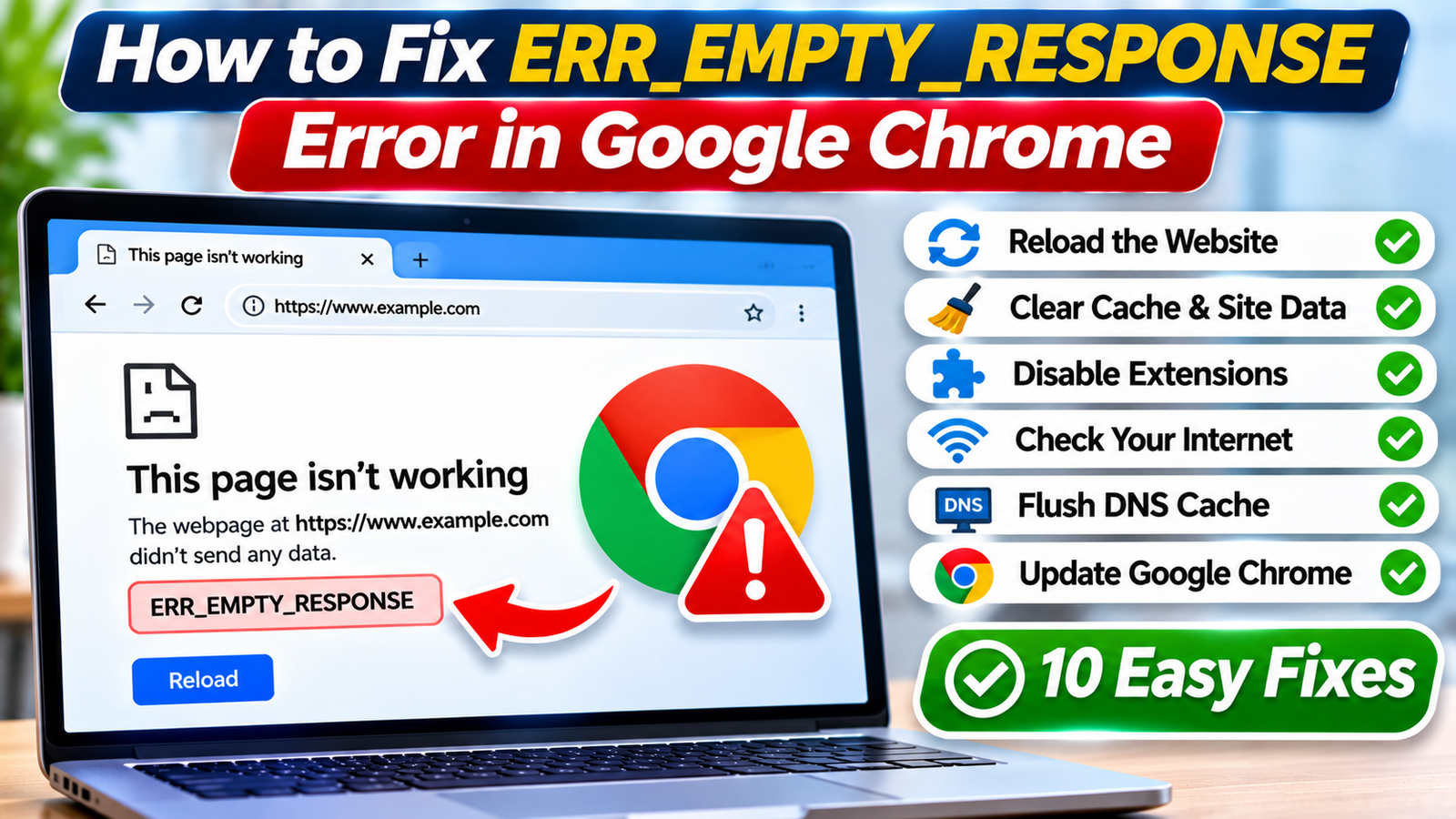
Google Chrome sometimes displays an unexpected error instead of loading a website. The page stays blank, and a message appears saying “This page isn’t working” or “ERR_EMPTY_RESPONSE.” Chrome may also explain that the website didn’t send any data.
This error can appear while opening a familiar website, accessing an online dashboard, or browsing a page that worked perfectly a few minutes earlier.
Unlike a standard “404 Not Found” error, ERR_EMPTY_RESPONSE generally indicates that Chrome did not receive a usable response from the connection.
The problem may involve your internet connection, browser settings, security software, or the website’s server.
Fortunately, several straightforward troubleshooting methods can help identify and resolve the cause without reinstalling Chrome or changing complicated system settings.
What Does ERR_EMPTY_RESPONSE Mean in Google Chrome?
The ERR_EMPTY_RESPONSE error occurs when Chrome attempts to communicate with a website but receives no usable response data.
In some cases, the connection closes unexpectedly before the browser receives an HTTP response.
This doesn’t necessarily mean your internet connection is completely disconnected.
For example, Google Search might work normally while a particular website repeatedly displays ERR_EMPTY_RESPONSE.
The issue can originate from either your device or the remote server.
Common causes include:
-
Temporary website server failures.
-
Unstable Wi-Fi or internet connections.
-
Browser extensions interfering with requests.
-
Incorrect proxy or VPN configurations.
-
Corrupted browser cache or site data.
-
Firewall or antivirus interference.
-
Network configuration problems.
-
Website security systems terminating connections.
Identifying whether the problem affects one website or multiple websites is the most useful first step.
First, Find Out Where the Problem Is
Before changing browser settings, perform three quick checks.
-
Open another reliable website in Chrome.
-
Try the affected website in a different browser.
-
Open the same website on another device or network, if available.
The results help narrow down the problem.
| What happens? | What it suggests |
|---|---|
| Only one website fails | Possible website or site-specific connection issue |
| All websites fail in Chrome | Browser or network configuration problem |
| Website works in another browser | Chrome-specific issue |
| Website works on mobile data but not Wi-Fi | Possible router, DNS, or network restriction |
| Website fails across multiple networks | Possible server-side problem |
These comparisons aren’t definitive, but they prevent unnecessary troubleshooting.
Fix 1: Reload the Website and Restart Chrome
Temporary connection interruptions can sometimes cause ERR_EMPTY_RESPONSE.
Start with the simplest solution.
-
Press Ctrl + R on Windows or Command + R on Mac to reload the page.
-
Wait a few seconds.
-
Close the affected tab.
-
Open the website again.
-
If the error continues, close Chrome completely.
-
Reopen Chrome and retry.
On Windows, you can also check Task Manager to ensure Chrome processes have closed.
If the error disappears after restarting, it may have been caused by a temporary connection or browser process problem.
Avoid repeatedly refreshing a website that is clearly experiencing a server outage.
Fix 2: Restart Your Router and Check Internet Connectivity
A weak or unstable internet connection can interrupt communication between Chrome and websites.
Even when your device shows a connected Wi-Fi icon, network requests may still fail.
Try the following:
-
Disconnect your device from Wi-Fi.
-
Reconnect to the network.
-
Test another website.
-
If problems continue, restart your router.
-
Wait until the internet connection is restored.
-
Open the affected website again.
If you’re using mobile data, try switching between cellular and Wi-Fi connections.
When a website works on one network but fails on another, the issue may involve DNS resolution, routing, or network filtering.
Fix 3: Clear Chrome Cache and Site Data
Chrome stores cached resources to help websites load faster.
Occasionally, outdated site data can interfere with normal website behavior.
To clear cached files:
-
Open Google Chrome.
-
Click the three-dot menu.
-
Select Delete browsing data.
-
Choose an appropriate time range.
-
Select Cached images and files.
-
Click Delete data.
-
Restart Chrome.
Try loading the website again.
If the problem persists, you can investigate cookies and other site data for the affected website.
Important: Clearing cookies may sign you out of websites and remove saved site preferences. Save unfinished work before deleting them.
Cache removal won’t fix every ERR_EMPTY_RESPONSE error, especially when the server itself is failing.
Fix 4: Test Chrome in Incognito Mode
Incognito mode provides a useful way to investigate whether ordinary browser settings or extensions are contributing to the error.
To open an Incognito window:
-
Launch Chrome.
-
Press Ctrl + Shift + N on Windows or Command + Shift + N on Mac.
-
Enter the affected website address.
-
Check whether the page loads.
Most extensions are disabled in Incognito unless you’ve explicitly allowed them.
If the website works in Incognito but fails in a regular window, investigate extensions, cookies, and site-specific browser data.
Remember that Incognito mode doesn’t bypass network restrictions or repair website servers.
Fix 5: Disable Problematic Chrome Extensions
Some extensions modify website requests, block scripts, or interfere with network communication.
Content blockers, privacy extensions, and certain security tools may occasionally contribute to loading errors.
To test extensions:
-
Enter
chrome://extensionsin Chrome’s address bar. -
Review the installed extensions.
-
Temporarily disable extensions that could affect network requests.
-
Reload the problematic website.
-
If it works, re-enable extensions one at a time.
-
Identify which extension triggers the error.
Update or remove the problematic extension if appropriate.
Don’t install unknown browser extensions promising instant error repairs. Untrusted extensions may introduce additional privacy or security risks.
Fix 6: Flush the DNS Cache on Windows
DNS translates website names into network addresses.
Occasionally, outdated DNS information can contribute to website connection problems.
Windows allows you to clear its DNS resolver cache.
Steps to Flush DNS
-
Open the Start menu.
-
Search for Command Prompt.
-
Open Command Prompt.
-
Enter the following command:
ipconfig /flushdns-
Press Enter.
-
Wait for the confirmation message.
-
Restart Chrome and test the website.
This command clears cached DNS resolver entries but doesn’t change your DNS server settings.
It may help when the issue involves stale DNS information, although ERR_EMPTY_RESPONSE isn’t necessarily a DNS-related error.
Fix 7: Check Your VPN and Proxy Settings
VPNs and proxy servers route internet traffic through additional network services.
An incorrectly configured or temporarily unavailable service can interrupt connections.
If you’re using a VPN:
-
Save your current work.
-
Temporarily disconnect the VPN, if permitted.
-
Open Chrome.
-
Test the affected website.
-
Reconnect the VPN afterward.
On Windows, review proxy settings under Settings > Network & internet > Proxy.
On managed school or workplace devices, don’t change required network settings without authorization.
If disabling a VPN resolves the error, investigate the VPN’s server selection, connection stability, or application settings.
Fix 8: Update Google Chrome
An outdated browser can experience compatibility problems with modern websites.
Keeping Chrome updated also provides important security fixes.
To check for updates:
-
Open Chrome.
-
Click the three-dot menu.
-
Select Help > About Google Chrome.
-
Allow Chrome to check for available updates.
-
Install updates when offered.
-
Relaunch the browser if prompted.
After restarting, revisit the affected website.
Browser updates aren’t guaranteed to fix ERR_EMPTY_RESPONSE, but they eliminate some known compatibility and security issues.
Fix 9: Reset Chrome Settings
If the error affects multiple websites and other solutions haven’t worked, resetting Chrome settings may help.
Chrome provides an option to restore many browser settings to their defaults.
To use it:
-
Open Chrome.
-
Navigate to Settings.
-
Select Reset settings.
-
Choose Restore settings to their original defaults.
-
Review the confirmation information.
-
Confirm the reset.
This process can reset startup behavior, search settings, and other browser configurations while disabling extensions.
It doesn’t normally delete bookmarks or saved passwords.
However, some preferences will need to be configured again.
Use this option after trying less disruptive solutions.
Fix 10: Reset Windows Network Components
When connection problems affect several browsers or websites, Windows network configuration may need attention.
Two commands can reset certain networking components.
Open Command Prompt as administrator and run:
netsh winsock resetThen run:
netsh int ip resetRestart Windows afterward.
These commands modify network configuration and may affect custom settings.
If your computer uses a corporate VPN, manually configured network, or specialized connection software, consult your administrator before proceeding.
This is an advanced troubleshooting step, not a routine first solution.
What If Only One Website Shows ERR_EMPTY_RESPONSE?
When other websites load correctly, the affected website may be responsible.
Possible causes include server configuration errors, overloaded hosting infrastructure, application failures, or security systems terminating requests.
Try opening the website from another connection.
If the error occurs across different devices and networks, contact the website administrator or wait for service restoration.
Avoid disabling your firewall or antivirus protection simply to access one problematic website.
Frequently Asked Questions
Is ERR_EMPTY_RESPONSE caused by a virus?
Not necessarily. This error commonly involves network interruptions, browser configurations, or server-side problems. Malware or unwanted software can sometimes interfere with connections, but the error alone isn’t evidence of infection. If you notice other suspicious behavior, run a scan using trusted security software.
Why does ERR_EMPTY_RESPONSE happen on only one website?
The affected website may have a server problem, or something on your network may interfere specifically with its connections. Test the website using another browser, device, or network. If it fails everywhere, a website-side issue becomes more likely, although it isn’t conclusively proven.
Can changing DNS servers fix ERR_EMPTY_RESPONSE?
Sometimes, particularly when DNS resolution contributes to the connection failure. However, this error often occurs after a connection attempt, so changing DNS servers isn’t a universal solution. Start by testing other websites and flushing the DNS cache before considering changes to DNS configuration.
Does reinstalling Chrome fix ERR_EMPTY_RESPONSE?
Reinstalling Chrome may help with damaged application files, but it won’t resolve internet outages, server failures, or many network restrictions. Try updating Chrome, testing extensions, and resetting browser settings first. Back up important browser information before performing a full reinstall.
Conclusion
The ERR_EMPTY_RESPONSE error in Google Chrome indicates that the browser didn’t receive a usable response from a website connection.
Start with simple fixes such as refreshing the page, restarting Chrome, and checking your internet connection. If the problem continues, investigate extensions, cached data, DNS settings, VPN connections, and browser updates.
More advanced network resets should be reserved for persistent problems affecting multiple websites.
By identifying whether the issue originates from Chrome, your network, or the website’s server, you can choose a safer and more effective solution without making unnecessary system changes.