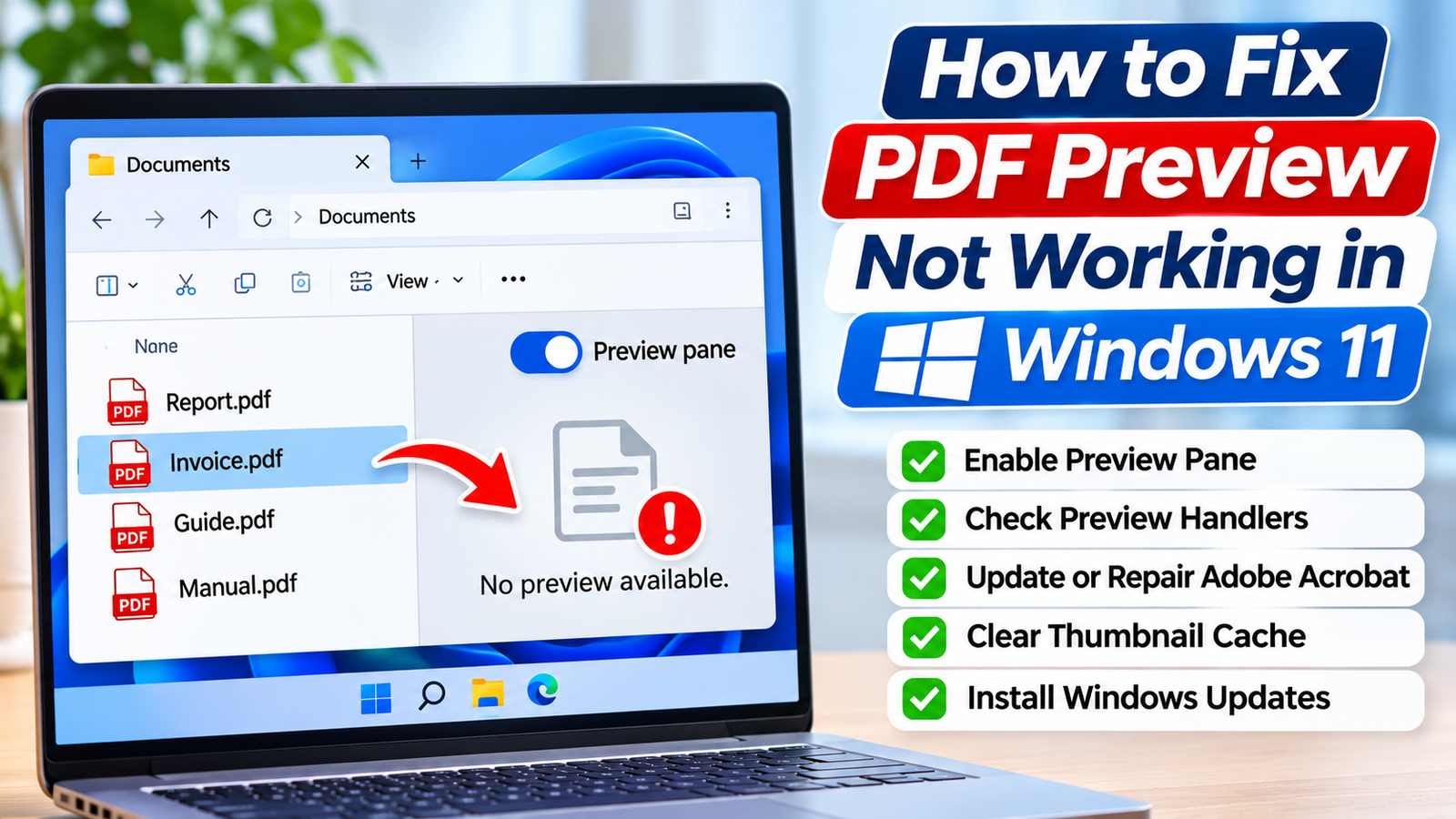
You select a PDF in Windows 11 File Explorer, expecting to see its contents in the Preview pane, but nothing appears. Instead, you might see a blank panel, a warning message, or the frustrating notification, “No preview available.”
Sometimes PDF thumbnails disappear too, leaving every document with the same generic icon.
These problems can make organizing invoices, reports, study materials, and scanned documents unnecessarily difficult.
Fortunately, PDF preview not working in Windows 11 does not necessarily indicate a damaged document. The issue may involve File Explorer settings, missing preview handlers, Adobe Acrobat configuration, or Windows security restrictions.
The following troubleshooting process helps identify the cause and restore PDF previews safely.
First, Identify Which PDF Preview Feature Is Broken
Windows 11 provides two different ways to recognize PDF documents in File Explorer.
Understanding the difference can save considerable troubleshooting time.
PDF Preview Pane
The Preview pane displays a larger view of the selected document inside File Explorer.
To access it, open File Explorer and select View > Show > Preview pane.
You can also use the Alt + P keyboard shortcut.
If the pane opens but displays no PDF content, the preview handler may be missing, disabled, or unable to process the file.
PDF Thumbnail Preview
Thumbnails are small visual representations of documents that appear instead of ordinary file icons.
Unlike the Preview pane, thumbnails appear directly in File Explorer’s file listing.
A PDF application may support one feature without supporting the other.
Therefore, fixing missing thumbnails does not always restore the Preview pane.
Fix 1: Enable the Preview Pane in File Explorer
The simplest explanation is that the Preview pane has been turned off.
Follow these steps:
-
Press
Windows + Eto open File Explorer. -
Navigate to a folder containing PDF documents.
-
Click View in the toolbar.
-
Select Show > Preview pane.
-
Click a PDF file once.
The Preview pane should appear on the right side of File Explorer.
If it displays the document, no additional troubleshooting is necessary.
If the pane remains empty, confirm that the selected PDF opens normally in a PDF reader before continuing.
Fix 2: Enable Preview Handlers in Folder Options
Windows uses preview handlers to display supported file contents inside File Explorer.
If preview handlers are disabled, selecting a PDF may not produce the expected preview.
To check the setting:
-
Open File Explorer.
-
Click the three-dot menu in the toolbar.
-
Select Options.
-
Open the View tab.
-
Locate Show preview handlers in preview pane.
-
Enable the checkbox if it is available and unchecked.
-
Click Apply, followed by OK.
-
Close and reopen File Explorer.
The wording and availability of this option may vary depending on your Windows build.
Remember that enabling preview handlers does not install a missing PDF preview handler. Your installed PDF software must also support the feature.
Fix 3: Enable PDF Thumbnail Previews
If PDF documents display generic icons instead of thumbnails, check Windows thumbnail settings.
Change File Explorer Settings
-
Open File Explorer.
-
Select the three-dot menu and click Options.
-
Open the View tab.
-
Find Always show icons, never thumbnails.
-
Uncheck this option.
-
Click Apply and OK.
Switch File Explorer to Medium, Large, or Extra large icons to check whether thumbnails appear.
Check Windows Performance Settings
Windows also includes a visual-effects setting that controls thumbnail display.
-
Press
Windows + R. -
Enter
SystemPropertiesPerformance.exe. -
Press Enter.
-
Under Visual Effects, locate Show thumbnails instead of icons.
-
Enable it if necessary.
-
Apply the changes.
These settings allow thumbnails to appear, but PDF-specific thumbnails may still require compatible PDF software.
Fix 4: Check Adobe Acrobat PDF Preview Settings
Adobe Acrobat can provide PDF integration features for Windows File Explorer.
Depending on the installed version, Acrobat may include an option to enable PDF thumbnail previews.
Try the following:
-
Open Adobe Acrobat or Acrobat Reader.
-
Open the application’s Preferences.
-
Select the General category.
-
Look for Enable PDF thumbnail previews in Windows Explorer.
-
Enable the option if available.
-
Confirm the change and restart File Explorer.
The exact location and availability of this setting depend on the Acrobat version.
Important: PDF thumbnail support and Preview pane support are separate features. Enabling thumbnails does not guarantee that the Preview pane will work.
If the setting is unavailable, check your application’s official documentation rather than changing unfamiliar Windows Registry entries.
Fix 5: Restart Windows Explorer
File Explorer can occasionally stop displaying previews correctly because of a temporary process issue.
Restarting Explorer is a relatively safe troubleshooting step.
-
Press
Ctrl + Shift + Escto open Task Manager. -
Locate Windows Explorer under Processes.
-
Right-click it.
-
Select Restart.
-
Wait for the desktop and taskbar to refresh.
-
Reopen the folder containing your PDFs.
Your taskbar and desktop may briefly disappear during the restart.
This is expected behavior.
Restarting Explorer does not delete documents or change their contents.
If previews return afterward but disappear again later, investigate PDF software compatibility or recent system changes.
Fix 6: Clear the Windows Thumbnail Cache
Windows stores thumbnail information to make file browsing faster.
If the thumbnail cache becomes corrupted, some previews may fail to appear or display outdated images.
You can rebuild the cache using Windows’ storage cleanup features.
-
Open Settings.
-
Navigate to System > Storage.
-
Select Temporary files.
-
Locate Thumbnails.
-
Select only the cleanup categories you intend to remove.
-
Click Remove files.
-
Reopen File Explorer.
Windows recreates thumbnails as needed.
This method is most relevant when PDF thumbnails are missing or incorrect. It is not a guaranteed solution for a broken Preview pane because preview handlers and thumbnail caching operate differently.
Fix 7: Repair or Update Your PDF Application
An outdated or damaged PDF application can interfere with File Explorer integration.
If you use Adobe Acrobat, check for available application updates.
In supported Acrobat versions, you can use Help > Check for updates.
Some versions also provide a repair installation option through the Help menu.
If your PDF application does not offer a repair feature, consult its official support documentation.
After updating or repairing the software, restart Windows and test the Preview pane again.
Avoid installing unofficial preview-handler packages from unknown websites. Software that processes documents can introduce security risks if obtained from untrusted sources.
Fix 8: Check Whether Windows Has Blocked the PDF Preview
Windows 11 security updates can affect how File Explorer previews files obtained from the internet.
Files marked as originating from the internet may display a security warning instead of a preview.
This behavior helps protect users from potentially unsafe content.
If the PDF came from a trusted source:
-
Right-click the downloaded PDF.
-
Select Properties.
-
Open the General tab.
-
Look for an Unblock option near the bottom.
-
If present, select it only after verifying that the file is trustworthy.
-
Click Apply and reopen the file.
Not every downloaded PDF will display this option.
Security warning: Do not unblock unknown attachments or suspicious downloads merely to make their previews work. Open them only when you trust their origin.
For company-managed computers, contact your IT administrator before changing security-related settings.
Fix 9: Test Another PDF and Install Windows Updates
Before attempting more complicated repairs, determine whether the problem affects every PDF.
Open several documents from different trusted sources.
If only one file fails, it may contain unsupported features or damaged content.
If every PDF fails, the problem is more likely related to Windows or your PDF application.
To check Windows updates:
-
Open Settings.
-
Select Windows Update.
-
Click Check for updates.
-
Install applicable updates.
-
Restart your computer if required.
Updates can resolve compatibility issues, although they do not guarantee a fix for every preview problem.
What to Do If PDF Preview Still Does Not Work
If the previous solutions fail, consider the symptoms before making further changes.
| Problem | Recommended next step |
|---|---|
| Preview pane is missing | Enable it from File Explorer’s View menu |
| PDF thumbnails are missing | Check thumbnail settings and PDF software |
| Only downloaded PDFs fail | Investigate Windows security restrictions |
| One PDF cannot preview | Test the document in another PDF reader |
| All PDFs fail after an update | Check application compatibility and official support |
On a managed work computer, organizational security policies may restrict previews.
Avoid disabling security features or modifying the Registry without understanding the consequences.
Frequently Asked Questions
Why does Windows 11 say “No preview available” for PDF files?
This message can appear when File Explorer cannot access a compatible preview handler or Windows restricts the selected file. Check whether the Preview pane is enabled, verify that your PDF application supports Explorer previews, and determine whether the problem affects all PDFs or only downloaded documents.
Does Microsoft Edge support PDF preview in Windows 11?
Microsoft Edge can open and display PDF documents directly. However, opening a PDF in Edge is different from previewing it inside File Explorer. Setting Edge as your default PDF application does not necessarily provide the File Explorer preview functionality you need.
Why are PDF thumbnails missing after a Windows update?
A Windows update may change system behavior or expose compatibility problems with installed PDF software. Check thumbnail display settings, update your PDF application, and rebuild the thumbnail cache if necessary. Also distinguish missing thumbnails from Preview pane failures because they require different troubleshooting approaches.
Can I restore PDF previews without installing Adobe Acrobat?
Possibly. Windows settings, security restrictions, or existing PDF software may explain the problem. However, File Explorer needs a compatible preview handler to display PDF content. If your installed applications do not provide one, you may need a trusted PDF application that explicitly supports Explorer previews.
Conclusion
When PDF preview is not working in Windows 11, start by identifying whether the problem affects the Preview pane, thumbnails, or both.
Enable the appropriate File Explorer settings, verify PDF application compatibility, and restart Windows Explorer before attempting more advanced solutions.
For downloaded PDFs, remember that Windows security restrictions may intentionally prevent previews.
By diagnosing the specific symptom and using trusted software, you can restore convenient PDF browsing without unnecessarily changing important system settings.