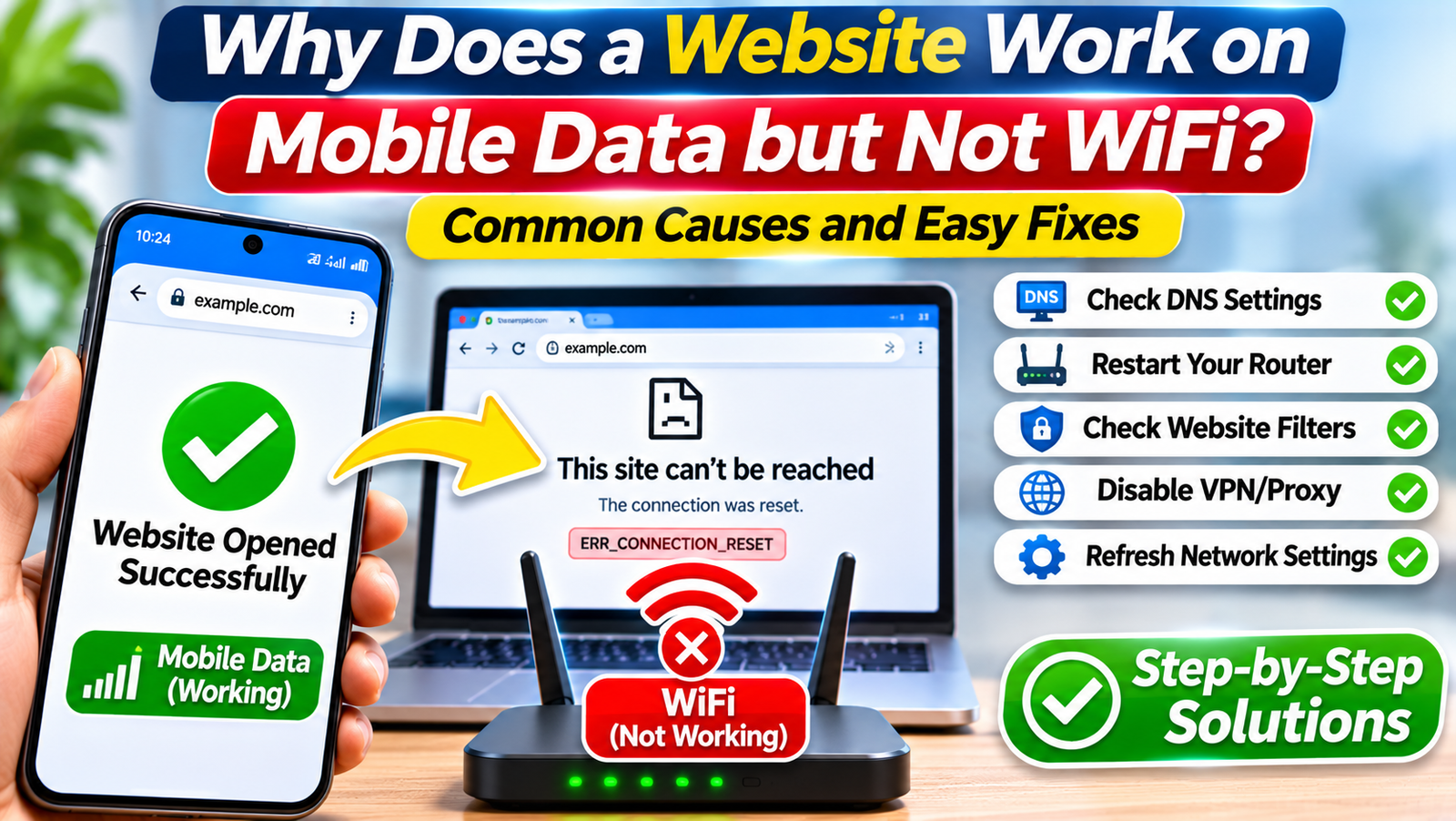
A website loads instantly when you switch to mobile data, but the moment you reconnect to WiFi, it stops working. Other websites might open normally, making the problem even more confusing.
This situation is surprisingly specific: your phone and browser can access the website, but something about the WiFi connection prevents it from loading.
The good news is that a website working on mobile data but not WiFi usually points toward a network-related difference rather than a broken phone.
Possible causes include DNS problems, router restrictions, internet service provider routing, IPv6 connectivity, or website security filters.
This guide explains how to identify the actual cause and troubleshoot it safely on Android, iPhone, Windows, and other WiFi-connected devices.
Why Does Mobile Data Work When WiFi Doesn’t?
Mobile data and WiFi often connect to the internet through completely different networks.
Your mobile carrier may use different DNS servers, public IP addresses, routing paths, and filtering policies from your home internet provider.
For example, when you open a website using WiFi, your request typically travels through your router and broadband provider before reaching the destination server.
On mobile data, the request travels through your cellular carrier’s infrastructure.
Because these routes differ, a website may work through one connection but fail through another.
The most common explanations are:
-
DNS resolution problems: Your WiFi network cannot correctly resolve the website’s domain.
-
Router restrictions: Parental controls or filtering rules block the website.
-
ISP routing issues: Your broadband provider has trouble reaching the destination.
-
IP-based blocking: The website restricts your WiFi network’s public IP address.
-
IPv6 problems: One network uses an unreliable IPv6 connection.
-
Device-specific settings: A VPN, proxy, or security application behaves differently on WiFi.
The first step is determining whether the problem affects your entire WiFi network or only one device.
Step 1: Test the Website on Another WiFi Device
Before modifying router settings, perform a simple comparison.
-
Connect your phone to WiFi.
-
Open the affected website.
-
Confirm that it fails.
-
Connect a second device to the same WiFi network.
-
Open the same website.
-
Compare the results.
If both devices fail, the problem likely involves the router, internet provider, DNS configuration, or website restrictions.
If only one device fails, investigate that device’s browser and network settings first.
Also check whether the website works on mobile data using the same browser.
This helps distinguish connection problems from browser-specific issues.
Step 2: Restart Your Router and Reconnect to WiFi
A temporary router or connection problem can affect access to particular websites.
Restarting your router is a reasonable first fix because it refreshes the device’s network connections.
Follow these steps:
-
Disconnect the router’s power.
-
Wait approximately 30 seconds.
-
Reconnect the power.
-
Allow the router to establish its internet connection.
-
Reconnect your phone or computer to WiFi.
-
Try opening the website again.
If your modem and router are separate devices, follow the manufacturer’s recommended restart sequence.
A restart doesn’t necessarily change your public IP address or resolve an ISP routing problem.
However, it can clear temporary router faults without altering saved configuration.
Step 3: Check Whether DNS Is Causing the Problem
DNS stands for Domain Name System.
It translates website addresses, such as example.com, into IP addresses that computers use to establish connections.
If your WiFi network’s DNS resolver returns an incorrect address or fails to respond, a website may become inaccessible.
Test DNS on Windows
Open Command Prompt and enter:
nslookup example.comReplace example.com with the affected domain.
The command displays information about the DNS server and its response.
If the lookup fails on WiFi but succeeds through another connection, DNS deserves further investigation.
However, a successful DNS lookup doesn’t guarantee that the website itself is reachable.
Try a Different Trusted DNS Provider
You can temporarily test a reputable public DNS service.
For example, Cloudflare provides:
-
Primary IPv4 DNS:
1.1.1.1 -
Secondary IPv4 DNS:
1.0.0.1
Google Public DNS provides:
-
Primary IPv4 DNS:
8.8.8.8 -
Secondary IPv4 DNS:
8.8.4.4
Configure these through your device’s network settings or router, depending on your setup.
Record your original settings before making changes.
On managed networks, ask the administrator first. Public DNS may bypass required internal name resolution or conflict with network policies.
Step 4: Forget the WiFi Network and Reconnect
Saved network configuration can occasionally cause connection problems.
Forgetting and reconnecting to the network may help when the issue affects only one device.
On Android
-
Open Settings.
-
Navigate to Network & internet or Connections.
-
Select WiFi.
-
Tap your connected network.
-
Choose Forget.
-
Reconnect using the WiFi password.
Menu names vary between Android manufacturers.
On iPhone
-
Open Settings > Wi-Fi.
-
Tap the information icon beside your network.
-
Select Forget This Network.
-
Confirm your choice.
-
Reconnect using the password.
Forgetting a network removes its saved connection information.
If other devices can open the website normally, this is a useful device-specific troubleshooting step.
Step 5: Check Router Parental Controls and Website Filters
Some routers include website-blocking features, parental controls, or security filtering.
These tools may block certain domains while allowing other websites to load normally.
To investigate:
-
Open your router’s administration interface using its documented address or app.
-
Sign in with your administrator credentials.
-
Locate parental controls, website filtering, or security settings.
-
Check whether the affected domain is restricted.
-
Review any relevant filtering logs.
-
Correct an accidental restriction if you are authorized to do so.
Avoid disabling all router security features just to access one website.
On school, office, or public WiFi networks, restrictions may be intentional.
Contact the network administrator rather than attempting to bypass them.
Step 6: Investigate VPN, Proxy, and Security Software
A VPN can change the route your traffic takes and the public IP address websites see.
Some VPN applications also apply different rules when connected to trusted or untrusted WiFi networks.
If you use a VPN, temporarily disconnect it where permitted and test the website again.
Similarly, review proxy settings and security software that filters web traffic.
If the website begins working, investigate the specific application rather than permanently disabling protection.
On Windows, proxy configuration is available under Settings > Network & internet > Proxy.
On iPhone, WiFi-specific proxy settings can be reviewed through the connected network’s information screen.
Step 7: Check for IPv6 Connectivity Problems
IPv6 is a modern internet addressing protocol used alongside IPv4.
Some websites support both protocols, but network connectivity can differ between them.
A misconfigured IPv6 connection may cause particular websites to fail or load inconsistently.
To investigate, compare the affected website’s behavior across devices and networks.
If you have access to router diagnostics, check whether IPv6 connectivity is functioning correctly.
An experienced user may temporarily test an alternative configuration, but changes should be reversible.
Do not permanently disable IPv6 as a routine fix. It can affect other services and may conceal an underlying router or ISP problem.
If IPv6 appears responsible, check router firmware and contact your internet provider.
Step 8: Flush DNS Cache on Your Computer
Even after a DNS problem is corrected, your computer may retain outdated DNS information temporarily.
Windows provides a command to clear its DNS resolver cache.
-
Open the Start menu.
-
Search for Command Prompt.
-
Open the application.
-
Enter:
ipconfig /flushdns-
Press Enter.
-
Wait for the confirmation message.
-
Restart your browser.
This operation doesn’t delete personal files or reset your router.
It only clears cached DNS resolver information maintained by Windows.
If the website remains inaccessible, investigate routing, filtering, or server-side restrictions.
Step 9: Contact Your ISP or the Website Administrator
If the website works on mobile data but fails across every device connected to your WiFi, the problem may exist outside your home network.
Your internet provider might have a routing issue, or the destination website may reject connections from your broadband IP address.
Before contacting support, collect useful details:
-
The affected website address.
-
The exact browser error message.
-
Whether other websites work.
-
Whether multiple WiFi devices are affected.
-
Whether mobile data loads the website successfully.
-
The approximate time the problem started.
Your ISP can investigate connection routing and DNS problems.
If the issue appears related to website security filtering, the website administrator may need to review access restrictions.
How to Verify That the Problem Is Fixed
After making one change, reconnect to WiFi and reload the affected website.
Check that the page opens completely, not just its homepage.
If appropriate, test another page within the same website.
Then restart your browser and try again to confirm the improvement persists.
Avoid changing several settings simultaneously because that makes it difficult to identify which action solved the problem.
Frequently Asked Questions
Why does only one website fail on my WiFi?
One website may be affected by DNS errors, router filtering, ISP routing, or restrictions applied by the website itself. If other websites work normally, a complete internet outage is unlikely. Compare the website across multiple devices and networks to narrow down the cause.
Can my internet provider block a website?
Internet providers may restrict access to certain websites because of legal requirements, security policies, or network configuration. However, an inaccessible website doesn’t automatically indicate deliberate blocking. DNS failures, routing problems, and website-side restrictions can produce similar symptoms.
Will changing DNS fix websites that don’t open on WiFi?
It may help if the problem involves DNS resolution. However, changing DNS won’t necessarily fix blocked IP addresses, server outages, or broken network routes. Test the website using a trusted alternative DNS provider and restore your original settings if the change doesn’t help.
Why does a website work on my phone but not my laptop?
The devices may use different DNS settings, browser configurations, VPNs, or security software. Confirm that both are connected to the same WiFi network. If the website works on one device but not the other, focus troubleshooting on the affected device.
Conclusion
When a website works on mobile data but not WiFi, the difference usually comes from how the two networks connect to the internet.
Start by testing another WiFi device, restarting your router, and checking DNS resolution. If necessary, investigate router filters, VPN settings, IPv6 connectivity, and ISP routing.
Make one change at a time and verify the results.
If the website remains inaccessible across your entire WiFi network, your internet provider or the website administrator may be able to identify a problem that cannot be resolved through browser settings alone.