You’ve completed an online application, prepared your documents, and reached the final upload step. You select your PDF file, click Upload, and suddenly receive an error message. The website might say “Invalid file format,” “Upload failed,” or “File size exceeds the maximum limit.”
Sometimes nothing happens at all.
This problem can occur on job application portals, government websites, university admission systems, email services, and document submission platforms.
Fortunately, PDF files not uploading to websites is usually a problem you can investigate without advanced technical knowledge.
The most common causes include oversized files, unsupported PDF features, browser problems, unstable connections, and website restrictions. Understanding the exact cause helps you fix the issue without unnecessarily modifying important documents.
Why Is My PDF File Not Uploading?
Websites apply different rules when accepting uploaded documents.
Some accept almost any standard PDF, while others enforce strict limits on file size, filename characters, document structure, or security settings.
A PDF that opens normally on your computer may still fail a website’s upload validation.
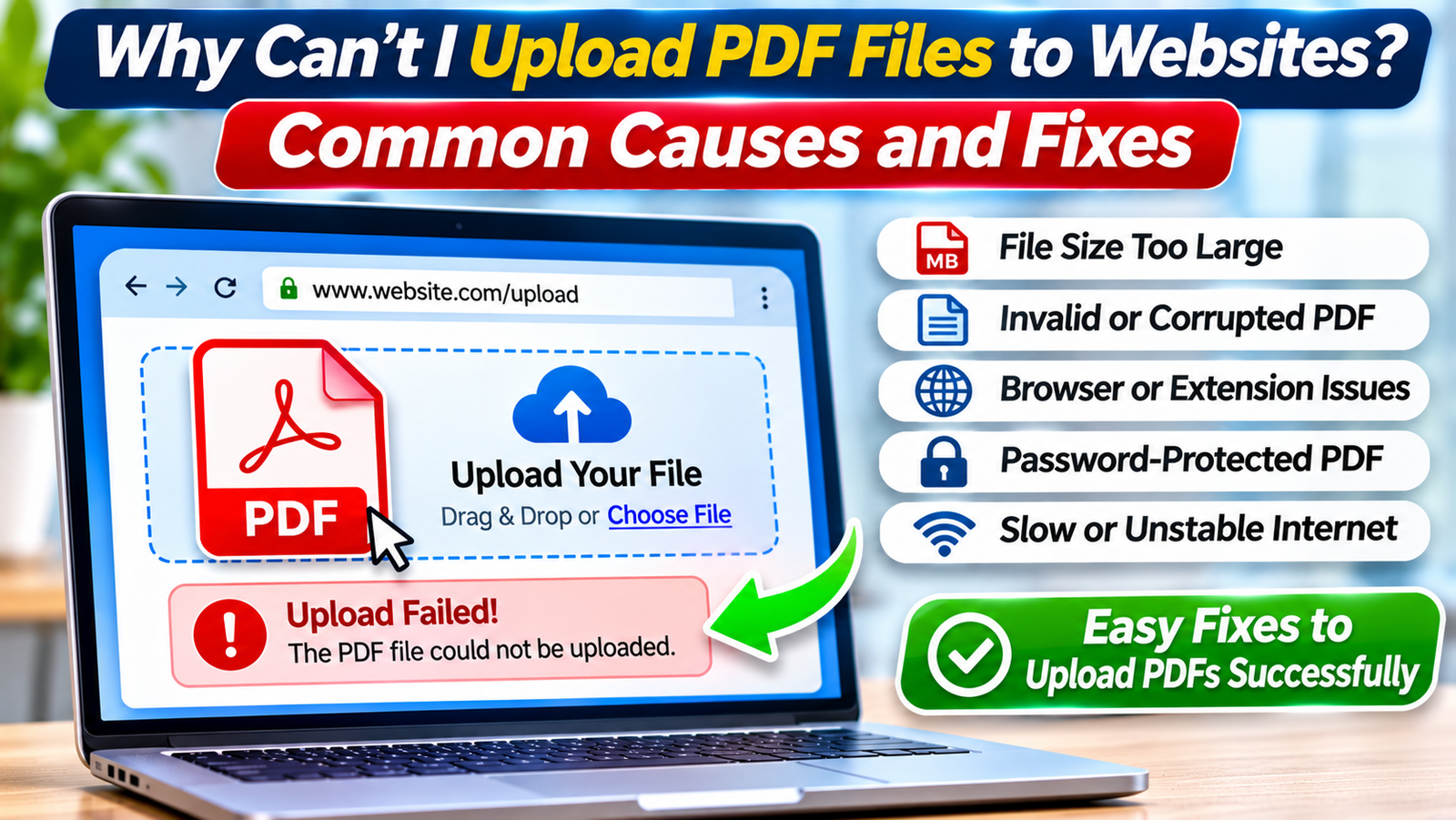
Here are the most common causes:
-
File size exceeds the limit: The PDF is larger than the website allows.
-
Unsupported file format: The file is incorrectly named or isn’t a valid PDF.
-
Browser problems: Extensions, cached data, or outdated software interfere with uploading.
-
Unstable internet: The connection drops before the upload finishes.
-
Password protection: The website cannot process an encrypted PDF.
-
Damaged document: The PDF contains incomplete or corrupted data.
-
Website restrictions: The server rejects the file or temporarily stops accepting uploads.
The error message often provides the first useful clue.
Quick Diagnosis: Match the Error to the Cause
Before changing settings, identify what happens when you upload.
| Upload problem | Likely cause | First action |
|---|---|---|
| File too large | Upload size restriction | Compress the PDF |
| Invalid file type | Incorrect format or extension | Verify the file |
| Upload stuck at 0% | Browser or connection issue | Try another browser |
| Upload stops midway | Network interruption or server problem | Retry on a stable connection |
| Password-protected PDF rejected | Encryption restriction | Use an authorized unprotected copy |
| No error, but upload fails | Website validation or session issue | Refresh and sign in again |
These are diagnostic clues rather than guaranteed explanations. Some websites display generic errors for several different problems.
Fix 1: Check the Website’s PDF Upload Size Limit
File size restrictions are among the easiest upload problems to identify.
A website might accept documents up to 2 MB, 5 MB, 10 MB, or another limit determined by its administrator.
How to Check PDF File Size
On Windows:
-
Locate the PDF in File Explorer.
-
Right-click the document.
-
Select Properties.
-
Check the file size.
On Mac:
-
Locate the document in Finder.
-
Right-click the file.
-
Select Get Info.
-
Review the size information.
Compare the result with the website’s stated upload limit.
If the PDF is too large, compress it using a trusted PDF application.
For scanned documents, reducing unnecessary image resolution may help significantly.
Always inspect the compressed version to ensure that text, signatures, and other important details remain readable.
Fix 2: Verify That Your File Is Actually a PDF
A filename ending in .pdf doesn’t necessarily mean the file contains valid PDF data.
For example, renaming document.jpg to document.pdf changes the filename but doesn’t convert the image into a PDF.
Some websites detect this mismatch and reject the upload.
To investigate:
-
Open the file using a trusted PDF reader.
-
Confirm that the document displays correctly.
-
Check whether every page is accessible.
-
Verify that the filename ends in
.pdf. -
If necessary, export a new PDF from the original application.
If your document was created in Microsoft Word, use its PDF export feature instead of manually changing the extension.
A properly exported document is more likely to pass file-format validation.
Fix 3: Rename the PDF File
Some upload systems have difficulty processing filenames containing unusual characters.
For example, a filename such as:
My_Document_(Final)#2026!.pdf
may be rejected by a poorly configured upload system.
Try a simpler filename:
my-document-2026.pdf
Use letters, numbers, and ordinary hyphens where possible.
Avoid excessively long filenames or unusual symbols.
Renaming a PDF doesn’t change its internal structure, so this is a low-risk troubleshooting step.
However, filenames aren’t always the cause. If the upload still fails, continue investigating the document and website requirements.
Fix 4: Try Uploading Through Another Browser
Browser compatibility issues can prevent a website’s upload form from functioning correctly.
If you’re using Google Chrome, try Microsoft Edge, Firefox, or Safari where available.
Follow these steps:
-
Save your work on the website.
-
Open another updated browser.
-
Visit the same website.
-
Sign in if required.
-
Navigate to the upload section.
-
Select your PDF and try again.
If the file uploads successfully, the original browser may have an extension, configuration, or compatibility problem.
You can then investigate that browser without changing the PDF itself.
Avoid submitting the entire application twice if the website already received your first upload.
Fix 5: Disable Browser Extensions Temporarily
Some browser extensions interfere with website scripts, file selectors, or network requests.
Privacy tools, content blockers, and security extensions may occasionally affect upload functionality.
To test Chrome extensions:
-
Open Chrome.
-
Enter
chrome://extensionsin the address bar. -
Review your installed extensions.
-
Temporarily disable extensions that might affect the website.
-
Reload the upload page.
-
Try uploading the PDF again.
If the upload works, re-enable extensions individually to identify the conflict.
Don’t permanently disable important security protections without understanding the consequences.
If the website requires you to weaken security settings, consider contacting its support team instead.
Fix 6: Clear Browser Cache or Refresh Your Session
Websites sometimes fail to upload documents because of expired login sessions or outdated browser resources.
First, try signing out and signing back in.
If that doesn’t work, clear cached website data.
In Chrome:
-
Open the three-dot menu.
-
Select Delete browsing data.
-
Choose the relevant time range.
-
Select Cached images and files.
-
Confirm the deletion.
-
Reopen the website.
Avoid deleting cookies unless necessary, because doing so may sign you out or remove stored website preferences.
If the upload page contains unsaved form information, save it before refreshing or clearing data.
Fix 7: Check Your Internet Connection
An unstable connection can interrupt uploads, particularly when submitting large documents.
A PDF might appear to upload for several seconds before the website reports a failure.
Try these steps:
-
Confirm that other websites load normally.
-
Pause unnecessary downloads or uploads.
-
Move closer to your Wi-Fi router if the signal is weak.
-
Switch to another trusted connection if available.
-
Retry the PDF upload.
For mobile users, switching between Wi-Fi and cellular data may help identify a network-related problem.
Avoid repeatedly submitting sensitive documents over unfamiliar public Wi-Fi networks.
If multiple websites experience upload failures, investigate your connection before changing the PDF.
Fix 8: Remove Password Protection When Permitted
Some document submission systems cannot process encrypted or password-protected PDFs.
A PDF may open correctly on your computer because you know its password, while the website rejects it during validation.
If the website specifically requires an unprotected document, use a trusted PDF application to create an unencrypted copy.
Only do this when you own the document or have permission to modify its protection.
Never attempt to bypass restrictions on documents you aren’t authorized to edit.
Also, remember that removing password protection reduces access restrictions on the resulting copy.
Store and share it appropriately.
Fix 9: Create a Fresh PDF From the Original Document
If the PDF is damaged or contains unsupported features, exporting a fresh copy may solve the problem.
For a Word document:
-
Open the original file.
-
Select File > Save As or Export.
-
Choose PDF.
-
Save the document with a new filename.
-
Open the new PDF to verify its contents.
-
Try uploading it again.
For scanned documents, use a trusted scanning application to create a standard PDF.
Be cautious when recreating signed documents. Printing or exporting a PDF again can remove interactive features or invalidate digital signatures.
Fix 10: Check Whether the Website Is Having Problems
Sometimes the problem isn’t your PDF or computer.
The website may have temporary server issues, expired sessions, upload restrictions, or maintenance-related failures.
If other valid PDFs also fail to upload, check for official service notices.
You can also try again later or contact the website’s support team.
Provide the exact error message, browser name, approximate upload time, and file size.
Do not send confidential document contents to support unless they explicitly require them through an authorized, secure channel.
How to Confirm Your PDF Was Uploaded Successfully
An upload progress bar reaching 100% doesn’t always mean the website has accepted the document.
Look for a confirmation message, saved filename, submission receipt, or document status.
If the website provides a preview, verify that the correct PDF was uploaded.
For important applications, save the confirmation number or receipt.
Avoid repeatedly submitting the same document without checking whether the previous attempt succeeded.
Frequently Asked Questions
Why does a website say my PDF file is invalid?
The website may reject the document because of incorrect formatting, corrupted data, unsupported PDF features, or filename restrictions. Open the PDF in a trusted reader, verify its contents, and export a fresh copy from the original document if necessary.
Why can I open a PDF but not upload it?
Opening and uploading involve different requirements. Your PDF reader may support features that the website’s document processor doesn’t accept. File size limits, encryption, browser problems, and server-side validation can also prevent uploads even when the document opens normally.
Can I upload a PDF from my phone?
Yes, provided the website supports mobile uploads. Use the browser’s file-selection option and choose the PDF from your device’s file storage. If the file is stored in a cloud service, download a local copy when necessary and confirm that the upload finishes.
Does compressing a PDF help fix upload errors?
Compression can help when the file exceeds the website’s size limit. However, it won’t necessarily solve problems involving invalid formats, encryption, browser compatibility, or server errors. Preserve the original document and verify the compressed copy before submitting it.
Conclusion
PDF upload failures can happen for several reasons, including file size restrictions, invalid document formats, browser conflicts, unstable connections, and website limitations.
Start by checking the exact error message, file size, and upload requirements. Then try simple solutions such as renaming the document, switching browsers, or exporting a fresh PDF.
For important submissions, always verify that the website accepted the correct file.
A careful troubleshooting approach can resolve many PDF upload problems without risking your documents or unnecessarily changing security settings.